A selector allows users to change the panels of a panel stack. By default, a selector displays as the selector style (such as buttons or links) and in the location on the document defined when the selector was created.
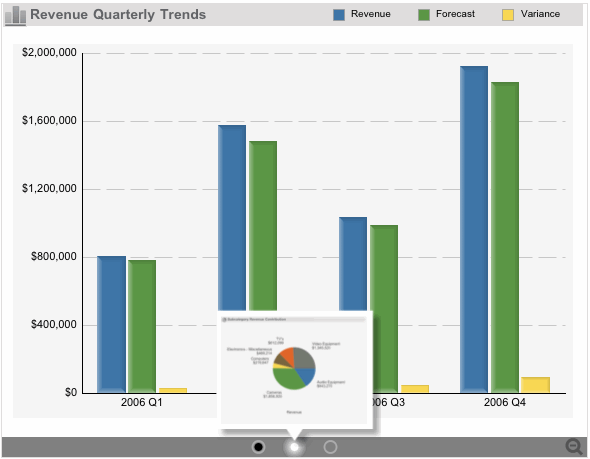
For documents displayed on an iPad with MicroStrategy Mobile, the selector can be docked instead. A docked selector displays as a selector bar at the bottom of the target panel stack, as shown below:
A row of circles, each representing a panel, is displayed in the center of the selector. The current panel is marked with a dark circle. The circle in the center of the selector has been tapped, to display a preview of the corresponding panel. To view that panel, tap the white circle. To scroll through previews of all the panels, drag your finger along the circles.
You can preview all the panels, by tapping the Zoom Out icon on the bottom-right of the panel stack. The current panel zooms out, and a preview of the panels is displayed. Swipe your finger left or right to scroll through the previews. To view a panel, tap its preview. The panel maximizes to fill the panel stack completely.
This property applies only to iPads that have the MicroStrategy Mobile application.
Note: In addition, MicroStrategy Mobile for iPad lets you switch panels with a horizontal swipe. For instructions, see Allowing panel change with a horizontal swipe on iPad documents.
Open the document in Design or Editable Mode.
Insert a panel stack into the document, if one is not already in the document. For steps, see Inserting a panel stack into a document.
Insert a selector that switches panels and targets the panel stack, if the selector is not already in the document. For steps, see Creating a selector for a panel stack.
Right-click the selector and select Properties. The Properties dialog box opens.
From the left, click Selector.
Select the Display
selector docked to its panel stack check box.
Note: If this check box is
not displayed, ensure that the Action Type is set to Select
Panel.
Click OK to return to the document.
Related topics